7 Tips for Choosing the Best USB C Plug Socket
A USB C Plug Socket can make a desk, bedside table, or kitchen counter easier to use, but the right choice involves more than finding a USB-C port. Charging speed depends on the socket’s output, the device, and the cable. USB-IF’s USB Power Delivery 3.1 specification allows supported equipment to reach up to 240 watts; that is a maximum, not a promise that every socket can deliver it. Check the rated output before buying. Small print matters.
The European Commission estimated that a common charger could reduce annual electronic waste by 11,000 tonnes and save consumers €250 million. Those figures describe the wider charging market, not the impact of one socket, but they show why compatibility and longevity deserve attention. USB-IF President and COO Jeff Ravencraft has described USB Type-C as “the future of connectivity.” For shoppers, the practical question is simpler: does the socket provide suitable power for the devices you actually own? This guide’s seven tips examine power ratings, port combinations, safety features, installation needs, build quality, and value. Look closely. A familiar USB-C shape does not guarantee identical performance. Check product specifications, match them to your devices, and treat vague claims with caution. One detail is easy to overlook: a higher wattage rating may be useful, yet it does not automatically make a socket the best fit for every home.
Match USB-C Power Delivery to Device Needs: USB PD 3.1 Supports Up to 240 W
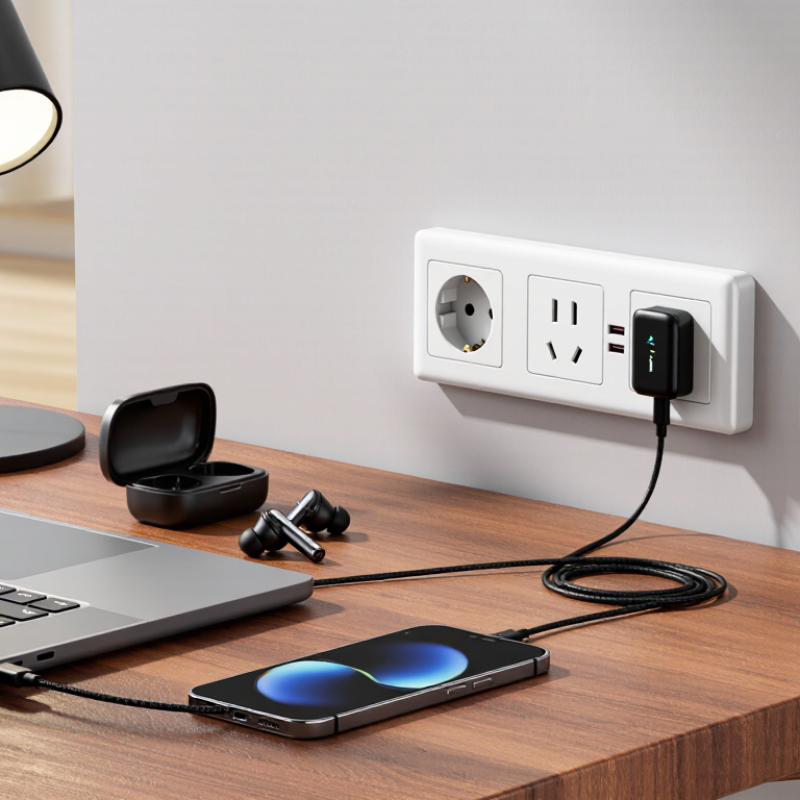
Choose a USB-C plug socket by matching its power output to the devices you actually charge. USB-IF’s May 2021 USB Power Delivery 3.1 specification added Extended Power Range, supporting up to 240 W at 48 V and 5 A. That matters. The figure is a maximum, not a promise that every connected device will receive 240 W. A phone may draw far less, while a power-hungry laptop may need a higher-rated port to charge reliably during use.
For the full 240 W, the socket, device, and cable must all support USB PD 3.1 EPR. Check the fine print. If the socket has multiple USB-C ports, look for its output table; available power may be shared when ports operate together. Compare that table with your laptop’s charging requirement, usually printed on its adapter or listed in its manual. The USB-IF specification sets the technical ceiling, but your device determines what it can accept. A higher number alone does not guarantee faster charging. I’d also check for clear safety and temperature-protection details; honestly, socket labels can be confusing, and small print is easy to miss.
Check Port Ratings and Shared Output Across Simultaneous Charging
A USB-C socket’s headline wattage can hide an important detail: ports may share one power budget. Check the rating for each port and the total output when several devices charge together. USB-IF’s USB Power Delivery Revision 3.1 specification allows up to 240 watts with compatible equipment. That figure is a maximum—not a promise that every port delivers it, or that multiple ports can supply it simultaneously.
Look for a port-sharing table in the product specifications. It should show what happens when two or more ports are occupied, such as a laptop drawing power while a phone charges nearby. A socket rated at 65 watts on one port might divide its output when another device is connected. Small print matters. Match the listed wattage to your devices’ requirements, and check whether the rating applies to one port or the combined output. I still find these tables easy to skim too quickly. That is an avoidable mistake.
For a practical check, compare the socket’s total output with the combined needs of your devices, then inspect its supported voltage and current. USB-IF’s USB-C and USB PD specifications describe the capabilities; the socket’s own rating explains its limits. If the maker gives no simultaneous-use figures, treat that as missing information, not extra capacity. A charging setup can work perfectly with one device, then slow down when a second is plugged in. A little inconvenient. But worth checking before installation.
Verify Safety Certification Against Applicable Electrical Standards
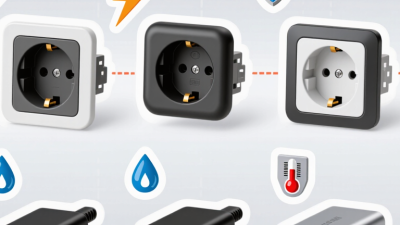
Tip 1: Check the USB-C plug socket’s certification mark against the electrical standards that apply where it will be installed. Standards differ by region, and a mark from another market may not confirm local compliance. Look for the certifier’s name or identifier, then verify it through that organization’s public directory. A printed logo alone is not proof. That matters.
Tip 2: Match the certificate to the exact product. Confirm the model number, rated voltage, current, grounding arrangement, and USB-C output shown on the device or its documentation. A certificate may cover only a related version or an earlier design. Don’t assume the housing tells the whole story. Review the installation instructions too, especially required box depth and wiring limits. Even a certified socket can be unsafe if installed incorrectly.
Tip 3: Treat certification as one check, not a guarantee. Inspect the unit for clear ratings, intact shutters where applicable, and secure, undamaged terminals. Be cautious if paperwork is missing or testing claims cannot be independently confirmed. It’s easy to overlook the USB-C output rating; compare it with the device you plan to charge. When details conflict, pause and consult a qualified electrician or the certifying body before installation.
Compare Outlet Fit, Port Layout, and Installation Requirements
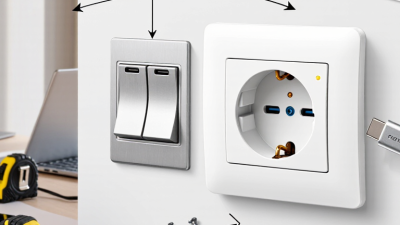
A USB-C plug socket should fit the wall box, not just look right in a product photo. Measure the existing box depth and check the socket’s dimensions before buying. A shallow box may leave little room for wiring, while a raised faceplate can sit awkwardly against the wall. Compare the screw positions and faceplate size, too. Small differences matter.
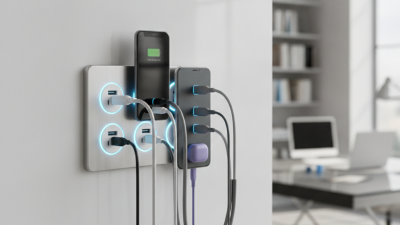
Look closely at the port layout. Two USB-C ports may seem ideal, but check whether they share the available power when both are charging. A phone and tablet plugged in together may charge more slowly than either device alone. Notice the spacing between ports and the standard outlets; bulky plugs can block neighboring sockets. One detail is easy to miss. I would not assume the printed total output tells the whole story.
Installation depends on the existing wiring, box space, and the socket’s requirements. Read the instructions for details such as grounding and supported wire connections. If the wiring is unfamiliar, damaged, or cramped, ask a qualified electrician rather than forcing the unit into place. A neat fit is useful, but it does not confirm a safe connection. Recheck the measurements before ordering; even careful estimates can be off by a few millimeters.
7 Tips for Choosing the Best USB-C Plug Socket — Compare Outlet Fit, Port Layout, and Installation Requirements
| Tip |
What to Compare |
Useful Checks |
Why It Matters |
| 1 |
Confirm outlet fit |
Match the receptacle configuration to the existing outlet and circuit, such as a compatible 15 A or 20 A model. Check the plug pattern, grounding, and product instructions. |
A receptacle must match the intended electrical circuit and box. Do not assume that a different-looking outlet will fit or be suitable for the existing wiring. |
| 2 |
Check USB-C power output |
Look for the stated USB-C Power Delivery output in watts. Around 20 W can suit many phones; tablets and laptops may need more. Compare the rating with each device’s charging requirements. |
USB-C describes the connector, not the amount of power delivered. A port’s maximum output varies by product and may be lower than a device’s preferred charging rate. |
| 3 |
Read shared-power ratings |
Check whether the listed output is per port or shared across multiple USB ports. Look for the combined output and any stated limits when two devices charge at once. |
Some sockets reduce USB-C output when another USB port is in use. The combined rating helps set realistic expectations for simultaneous charging. |
| 4 |
Compare port layout |
Consider USB-C port position, spacing between USB ports, and whether the mains outlets remain accessible with larger plugs or power adapters inserted. |
A compact layout can make adjacent ports or outlet spaces difficult to use. Check the product’s dimensions and layout against the plugs used in that room. |
| 5 |
Check box depth and fit |
Compare the device’s dimensions and required box depth with the existing electrical box. Allow room for the receptacle body and conductors without forcing them into place. |
USB charging electronics can make a receptacle deeper than a standard one. A crowded or shallow box may prevent a safe, flush installation. |
| 6 |
Review wiring and protection |
Follow the product’s wiring diagram and requirements, including any neutral-wire requirement. Check whether GFCI or AFCI protection is required for the location under applicable local rules. |
Wiring needs differ by product and installation location. Required circuit protection depends on local electrical codes and the room or area where the outlet is installed. |
| 7 |
Verify safety certification |
Choose a product with recognized safety certification for the intended market, and confirm its electrical ratings and installation instructions are clearly stated. |
Certification and clear ratings help establish that the product has been evaluated for its intended use. Do not rely on appearance or USB output claims alone. |
Installation note: Turn off power at the breaker and verify the circuit is de-energized before any work. If you are unsure about outlet compatibility, wiring, box capacity, or local code requirements, use a qualified electrician.
Assess Cable Compatibility: USB-C PD Can Deliver Up to 5 A at 48 V
Treat 48 V at 5 A as a ceiling, not a setting every cable can use. The USB-IF USB Power Delivery 3.1 specification defines Extended Power Range operation up to 48 V and 5 A, equivalent to 240 W. That is an upper limit, not a guarantee that every USB-C socket will deliver it. The socket, power supply, cable, and connected device must all support compatible power modes. Check the cable. USB-IF Type-C cable requirements call for electronic marking on cables rated for 5 A. Many standard USB-C cables support only 3 A, so check the cable’s rating and documentation before relying on a 5 A connection.
For a practical check, look for clear 5 A and EPR compatibility information, rather than assuming a USB-C connector means high-power support. A cable that falls short may still charge a device, but it cannot carry the full 5 A rating. In a socket installation, also consider the cable’s length and how tightly it sits behind furniture; cramped routing can make heat harder to notice. The label can be vague, too. Verify the exact cable specification against the socket’s documentation, especially when planning to power a laptop or other high-draw device.